
How to add your business location on Instagram: a clear guide
A newsroom-friendly guide explaining steps to add a business location on Instagram, with practical options, pitfalls, and tips for accuracy and visibility.

Public posts and business pages often hinge on local visibility. This guide explains how to add your business location on Instagram in a way that fits with everyday newsroom use: clear steps, common mistakes, and how to verify you’ve shared the right address. The aim is a practical workflow you can follow without fuss, so readers can reach the right local audience. You’ll learn how to prepare, where to find settings, and what to watch for after publishing.
Whether you’re updating a current IG business profile or starting fresh, accuracy matters. We cover the exact steps you’ll take in the app, plus a quick check routine to confirm the location shows up correctly on the map and in search. The focus is on reliability, not shortcuts, so you can trust your listing when readers in Duxbury look for services.
The goal is a straightforward path: prepare the data, confirm the location, and monitor engagement. By the end, you’ll know when to use business tools versus personal profiles and how to handle potential discrepancies. The newsroom-principle is to verify information before it’s shared to the public: accuracy first, speed second.
- Add your business location on Instagram by switching to a professional account, ensuring the address is correct and visible. Use Add Location when posting to tie posts to the storefront. Verify the map pin matches your real address and maintain consistency across profiles.
- If the business operates in Duxbury, confirm that the listing appears in search results for the town to avoid misdirection. Consider creating a storefront listing distinct from service-area entries when appropriate.
- Regularly review posts for accuracy, update hours as needed, and monitor reader interactions to catch outdated information early.
Basics to set up first
Check profile type
Start by confirming your Instagram profile is a business or creator account. This unlocks location tagging and business tools in the app. If you’re converting, do it from Settings > Account > Switch to Professional Account. After switching, you’ll see location options ready for use. add your business listing in Duxbury
You then verify you have a valid business category and updated contact info. This reduces confusion for readers who rely on contact details. A clean, accurate profile supports better local discovery and trust.
If you already have a listing elsewhere, you can link it to your IG profile to signal affiliation, but the primary address should be the storefront you want customers to visit. Consistency across platforms matters for local readers.
- Switch to a professional account for location features
- Update business category and contact details
- Keep storefront address consistent across platforms
- Link external listings only if they reflect the same address
- Test profile visibility after changes
Where to find location options
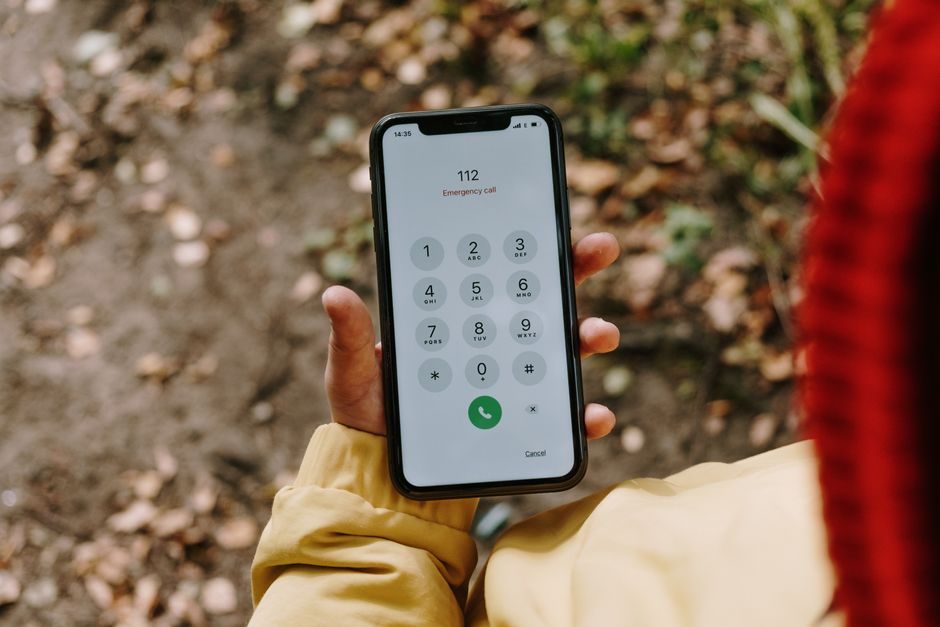
Add location to posts
Open the Instagram app, compose a new post, and look for Add Location. You can search for your business by name or address. Choose the correct option so when readers view the post, the location tag points to your storefront. A useful resource on this topic: Duxbury News headlines.
After selecting a location, publish as usual. The location label appears under the post, aiding local discovery. If you don’t see your business, continue with the steps to add it to your business profile first.
Check that the map pin matches your storefront address exactly. Small differences can mislead readers and reduce foot traffic. A precise pin helps local readers find you quickly.
- Open New Post > Add Location
- Search by name or address to tag
- Publish and verify the tag appears
- Confirm exact pin alignment
- If missing, update profile listing first
Options for showing location
Use business location vs. service area
Choose whether to attach a single storefront location or a broader service area. A storefront address is best for walk-in customers, while a service-area tag helps if your business serves nearby neighborhoods without a fixed front desk. A useful resource on this topic: submit an event in Duxbury.
Consider adding multiple locations if you operate across several sites. Each location should have its own valid address and hours. This prevents cross-location confusion for readers.
In both cases, ensure the hours and contact details align with what’s shown on the listing, so readers don’t plan a visit only to find the wrong information.
- Storefront vs service area choice
- Multiple locations require separate entries
- Keep hours and contact consistent
Compare your listing against official records or your own website to ensure alignment.
Strategies for verification
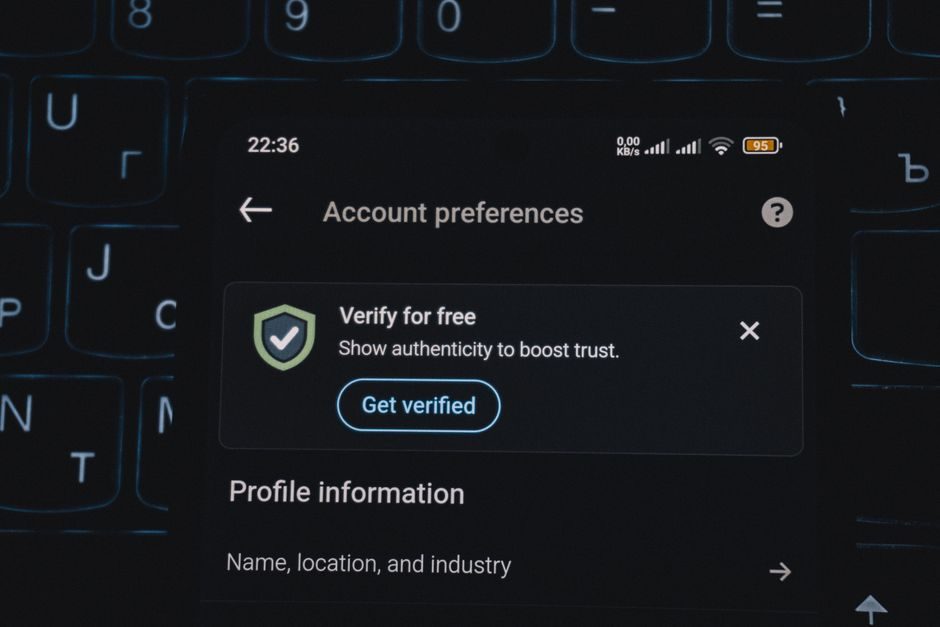
Confirm business details first
Begin by mapping your business name, address, and category to what appears on other platforms. Consistency helps users and algorithms verify legitimacy. Double-check spelling and punctuation to avoid confusion. A useful resource on this topic: post a classified ad in Duxbury.
Compare your listing against official records or your own website to ensure alignment. If discrepancies exist, resolve them before linking to Instagram. Errors can undermine trust and slow engagement.
For brands with multiple locations, choose a primary address for the profile and add secondary outlets in posts or Stories as needed.
- Use the exact business name
- Match the physical address
- Verify category alignment
- Maintain a single primary location
Check profile visibility
Ensure the location tag is visible to the intended audience. Some audiences may not see location data if privacy settings or country restrictions apply. Test by viewing the profile as a guest or from a different device.
Review who can see your location in posts, Stories, and highlights. Consider whether to show location publicly or keep it limited to followers.
If location data is hidden by policy, plan alternate signals like city-level captions or neighborhood mentions to aid discoverability.
- Public vs. private visibility
- Audience testing
- Policy considerations
- Alternate signals for discovery
Common mistakes to avoid
Inconsistent location names
Mismatches between your listing, website, and social profiles confuse followers and platforms alike. Use the exact business name and city as shown in official records. Update all channels if your branding changes. online obituaries in Duxbury
- Mismatched addresses across channels.
- Different brand names on social and website.
- Inconsistent city naming conventions.
Inconsistency invites errors in search and tagging, reducing local reach. It also complicates customer service when inquiries reference different addresses.
Avoid abbreviations that differ by platform; spell out street names if possible to maintain uniform search signals.
- Use the same name everywhere
- Keep city and state consistent
- Avoid abbreviations that vary by site
Choose to place a concise check on your workflow to catch errors before posting. Run a quick audit of new posts, stories, and profile edits for any mismatches in location data. This habit prevents small mistakes from becoming public.
Develop a mini-guide for team members detailing where and how to update location information. Clear roles reduce the chance of outdated data slipping through during rapid content cycles.
Establish a fallback plan for edits: how to correct a location tag in a post or highlight when a mistake is discovered after publication.
- Create an update checklist
- Assign location owner
- Implement a review cadence
- Prepare quick correction steps
Advanced tips for accuracy
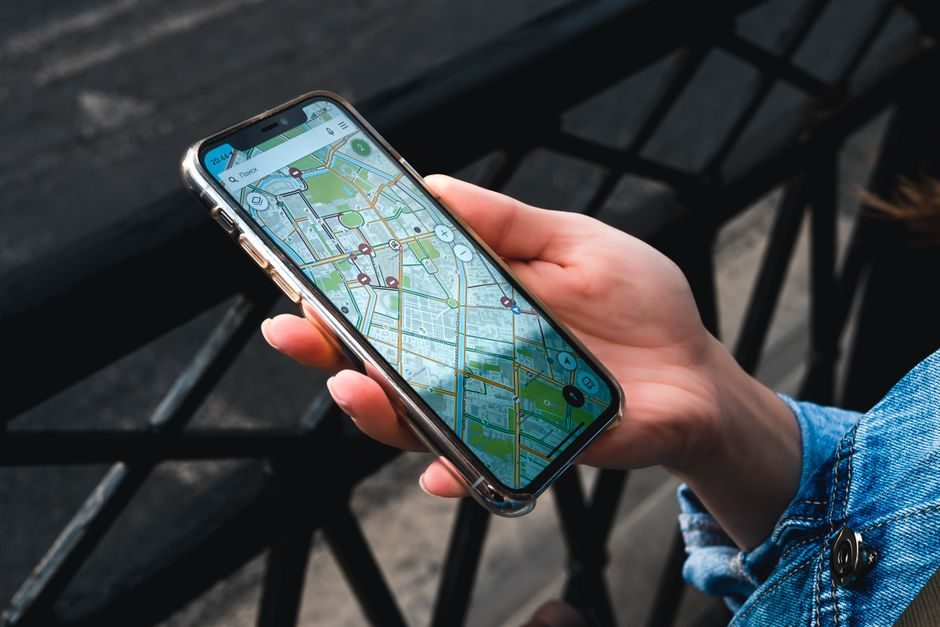
Leverage business metadata
Use structured data from your business directory to reinforce the location in your Instagram presence. Align the address in your profile with the same postal format used by local directories. This cross-check helps search algorithms understand your footprint.
- Structured data strengthens accuracy.
- Neighborhood mentions aid local relevance.
- Timely notes prevent confusion.
In post captions, reference the neighborhood or district to boost local relevance without overloading the post with address details. It provides a local context readers can trust.
If your business shifts temporarily, update location tags quickly and note the change in a caption to avoid confusion.
- Align with local directories
- Use neighborhood cues
- Note temporary changes
- Preserve postal consistency
Map your content to a single true location to avoid split signals. If you operate in multiple sites, designate a hub location for main visibility, then reference other sites in dedicated posts or Stories. This strategy keeps your feed cohesive and searchable.
Regularly review analytics for location-based engagement. Look for shifts in reach after profile edits and adapt your approach accordingly.
Stay cautious with user-generated content that tags places; moderate such posts to maintain accuracy across the account.
- Set a hub location
- Reference others in context
- Monitor location-based metrics
- Moderate external tags
Reader-friendly maintenance
Create a simple update routine
Schedule a quarterly audit of all location data across your profile, highlights, and linked posts. A short, repeatable process prevents drift and keeps information current. This is often enough to catch outdated or incorrect details.
- ☐ Audit all location mentions
- ☐ Record changes in a shared note
- ☐ Test visibility from different devices
- ☐ Verify consistency across sections
Document any changes in a shared team note so colleagues understand why a location was updated. This transparency helps maintain trust with followers.
Set up alerts for profile edits that involve location data so you catch unintended changes quickly.
- Quarterly data audit
- Shared change log
- Profile edit alerts
How you handle location tags affects local readers and nearby businesses. Use precise, not vague, cues when describing where you operate to help readers picture the place. Avoid overstuffing captions with addresses; focus on relevance and context.
Prepare a quick guide for new team members about how location data should be added. Clear expectations reduce errors during busy periods or events.
For repeated events or pop-ups, set a temporary tag workflow so location data remains accurate after the event ends.
- Be precise with cues
- Create onboarding notes
- Use temporary tags for events
- Review after campaigns
Frequently asked questions
Will adding a location affect post reach on Instagram?Yes, in some cases location data can improve visibility for local readers and nearby users. Effective tagging helps your content surface in local search results and in location-based discovery. Pair location data with relevant hashtags to reinforce local relevance.
Should I use a street address or city name?If privacy or policy concerns exist, a city name is often sufficient to guide local readers. A full street address is unnecessary in most public posts. Use the level of detail that matches your audience and platform norms.
What happens if I move to a new location?Update the primary location and adjust captions on existing posts where relevant. Notify followers with a concise post or story, so you maintain trust and ensure readers aren’t misled about where you operate.
How can I verify that my location data is accurate?Perform a quick cross-check with your website and any local directories. Look for consistency in naming, city, and service area. Periodic audits help catch drift before it affects engagement.
Next steps for your local presence
A steady, verified location strategy helps readers find you and supports local reporting by establishing a clear footprint. Start with one hub location, then expand only when you have enough context to avoid confusion. A consistent approach builds trust and improves audience signals.
With a simple maintenance routine, you can keep location data accurate without dedicating excessive time. Treat location management as part of your standard publishing workflow, not a one-off task. The result is cleaner posts, fewer reader questions, and better local reach.
Add Tokyo City News as a preferred source on Google


