
How to list your event on district app: clear steps
A practical, journalism-style guide showing how to list your event on district app, with straight guidance, examples, and common pitfalls for accurate posting.

If you want to reach local readers, listing your event on district app is a straightforward way to publish details, dates, and location. This article walks you through the steps, from understanding the platform to submitting your event, and highlights practical checks to avoid common errors. Readers will learn what information to prepare and how to verify listings before they go live.
First, gather essential details: event name, date, time, venue, and a short description. Then, check image and copy guidelines to ensure your listing looks clear on mobile and desktop. Finally, confirm timing and review your draft for accuracy before submitting.
This guide keeps the focus on practical steps and concrete outcomes, not hype. It covers preparation, submission, and quick validation so local readers can rely on your listing. It also flags typical mistakes that delay publishing or mislead attendees.
- To list your event on district app, prepare essential event details, write a concise description, and verify formatting before submission.
- Publish with clear dates and a readable image to attract local readers, then monitor updates and reader questions.
- Consider cross-posting and keep content consistent across channels, while avoiding common posting mistakes and moderation delays.
Basics of listing on district app
What to prepare first
Before you start a listing, assemble core details: event name, date and time, venue, and a brief description. Collect contact information for questions and a fallback plan if details change. Having everything in one place speeds submission and reduces errors. list your event in Crawley
- Gather event title, date, time, and venue
- Write a concise description in two sentences
- Collect organizer contact details
- Have a ready-to-upload image that meets guidelines
This section shows the exact fields you’ll fill on the app, and where to paste your description so it’ll fit on different screen sizes. It also explains how to copy a concise, clear summary from your event page to save time.
The goal is to prevent back-and-forth edits after you hit submit, which can delay visibility and confuse potential attendees.
- Event title clear and exact
- Date and time clearly stated
- Venue address and city
- Contact method included
- Short description kept to essential details
Submitting with confidence
Open the district app and locate the events or community section to start a new listing. Paste your prepared details into the required fields and double-check for spelling and dates. Use the preview function if available to confirm layout on mobile and desktop.
Add any optional categories or tags that help readers find your event, such as local neighborhood or family-friendly. Review the image size and alt text to improve accessibility and reach.
Submit the listing and note the publication status. If the app requires verification, check for a confirmation email or in-app notification and respond promptly.
- Use the built-in preview to check layout
- Tag responsibly for discoverability
- Ensure accessibility with alt text
- Wait for confirmation before sharing externally
What readers will see and expect
How listings appear to users
Users see a clear event title, date, and venue on the listing card. Descriptions are trimmed to a readable length with a link for more details if provided. Images illustrate the event and help readers decide quickly whether to attend. Crawley Daily headlines
Clear formatting helps readers scan quickly, compare events, and plan their day. District app prioritizes time-sensitive information for breaking local news relevance.
Readers expect accurate information and straightforward navigation to event details, including contact options.
- Clear title and date
- Concise description
- Helpful image
- Direct link to details if available
Common posting mistakes
Avoid posting vague descriptions or exaggerated times. Never leave essential details blank, as readers rely on accuracy for planning. Mislabeling the venue or date leads to attendee confusion and potential event no-shows.
Preview the listing on a mobile device to ensure readability with smaller screens. Check that the event category matches the event type to improve searchability.
If you update details, re-submit or note the changes so readers and moderators can reflect the update.
- Vague or missing details
- Inaccurate venue or time
- Poor mobile formatting
- Untracked edits after submission
Alternatives and options
Other platforms to consider
In addition to district app, you can post on a local community board, social media groups, or venue calendars. Each platform has its own guidelines, so tailor your listing to fit the audience and format. Crawley business listings
- Keep core details the same
- Adapt length for each platform
- Monitor responses across channels
- Update consistently across all posts
Cross-posting helps reach readers who prefer one channel over another. Keep core details consistent to avoid miscommunication.
Track performance by noting which channel brings the most clicks or RSVPs and adjust future postings accordingly.
- Local community boards
- Social media groups
- Venue calendars
- Newsletter inserts
| Option | Pros | Cons |
|---|---|---|
| Direct district app listing | Fast publish, integrated with local feed | Limited customization and potential moderation delays |
| Cross-posting to other channels | Extends reach, different audiences | Requires more coordination and updates |
| Third-party events calendars | Broad visibility | Less control over details and timing |
Time-sensitive posting strategy
For breaking local events, publish early on the day’s schedule to maximize visibility. Use a concise headline and a prominent date in the listing. Timeliness matters when readers are planning last-minute attendance.
Set up reminders or updates if details change, so readers do not rely on outdated information. Consider pinning the listing where possible.
Coordinate with newsroom calendars to surface the event in relevant local coverage and avoid duplication of content.
- Publish early for visibility
- Use concise headlines
- Set reminders for updates
- Coordinate with newsroom calendars
Keep a copy of the submitted content to reuse if needed and to speed up future postings.
Potential pitfalls to avoid

Moderation and approval issues
Moderation on district app can slow publishing. Ensure every field is filled correctly to minimize delays and reduce the need for follow-up confirmations. If a listing is rejected, review the feedback and correct the issues before resubmitting. used items for sale in Crawley
- ☐ Dates and times
- ☐ Venue details
- ☐ Descriptions aligned with guidelines
- ☐ Images meet specs
Keep a copy of the submitted content to reuse if needed and to speed up future postings.
Understand the app’s moderation criteria and adjust your listing to meet them.
- Fill all required fields
- Review feedback carefully
- Keep a reusable copy
- Know moderation rules
Handling ticketing and RSVPs
If the app supports tickets or RSVP fields, test them with a small batch before announcing to a wider audience. Check that payment links or RSVP counts update accurately in real time. Plan a backup method if the platform experiences outages.
Communicate clearly about refunds or changes to attendance and provide an easy way for readers to contact organizers.
Avoid relying solely on one channel for ticketing to prevent access issues if the platform changes policies.
- Test small batch tickets
- Verify payment/RSVP updates
- Provide backup contact
- Communicate refunds and changes
Monitoring and optimization
Tracking performance metrics
Monitoring how your event listing performs helps you adjust details and reach. Track views, saves, and clicks to understand reader interest. Update keywords and descriptions based on what readers click most often. how to place an obituary in Crawley
This section shows readers how to recognize patterns in engagement and what changes cause shifts in visibility. Small tweaks in wording can improve clarity and searchability. Use simple experiments to refine the listing content over time.
- Monitor impressions and interactions
- A/B test headlines or tags
- Adjust times and locations if data shows relevance
- Refresh description to reflect new details
Compliance and accessibility
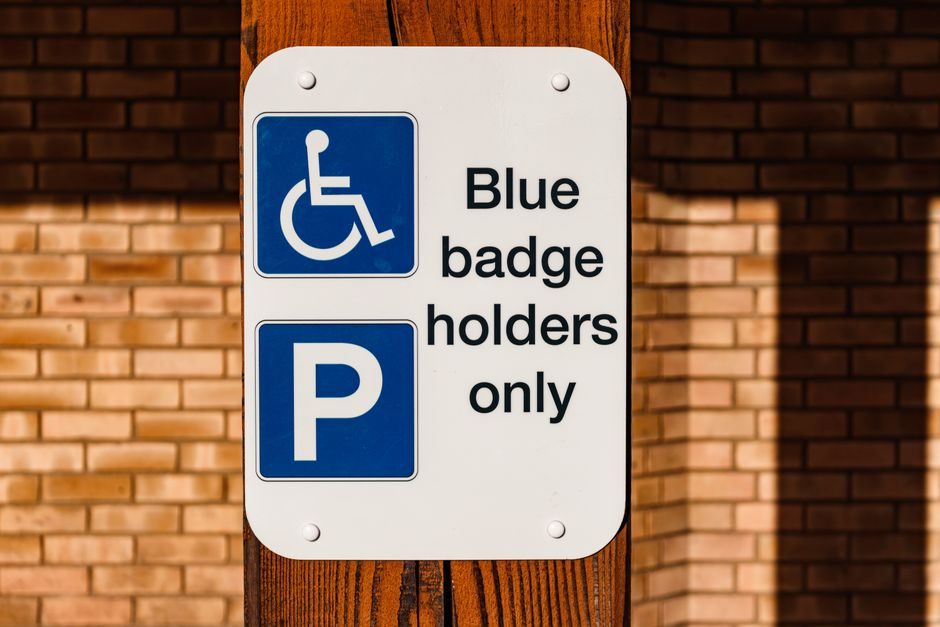
Legal and accessibility basics
Ensure the listing complies with local rules about event promotion and clarity of information. Include official times, correct venue spelling, and any entry requirements. Clear language helps readers who rely on assistive technologies.
Accessibility matters for broad readership; describe accessibility options such as wheelchair access or captioning if available. Keep terms simple and avoid jargon that could exclude readers.
Verify that contact details are accurate so readers can ask questions before attending.
- Describe accessibility options plainly
- Use alt text for any images
- Provide a contact method for questions
- Avoid misleading or vague terms
Case studies and examples
Real-world listing tweaks
Case-by-case tweaks show what works in practice. A concise title, a precise time window, and a clear call to action reduce reader confusion. Include essential details first so readers gain value quickly.
Consider including a short summary of what attendees will gain and any registration steps. This helps set expectations and improve turnout.
Use an example listing as a reference point for future events to maintain consistency across Crawley listings and related coverage.
- Use a strong, specific headline
- Lead with what and when
- Include registration steps if needed
- Maintain consistent style across listings
Practical takeaways
Checklist for a publish-ready listing
Start with the essential details: title, time, venue, and a contact method. Add a short, accurate description that matches the event’s purpose. Proofread for spelling and times before publishing.
Include nearby landmarks or transit notes if relevant to Crawley readers. Clarity reduces follow-up questions and returns.
Test the listing by sharing a draft with a colleague to catch ambiguous phrases or missing details.
- Core details first
- Clear descriptions
- Proofread and verify times
- Get a second review
Frequently asked questions
Can I edit my listing after it goes live?Yes. Most platforms let you update the title, time, venue, and description. Keep a note of any changes for readers who may have saved the original details, and verify that updates propagate to all affected sections.
How specific should the listing be about location?Be precise about the venue name and address. If the app supports mapping, ensure the map point matches the listed venue. Mention nearby landmarks to help readers orient themselves.
What if my event is free or has limited seats?State pricing or admission status clearly and explain any reservation requirements. Include how many seats are available if this information is relevant to readers.
Is an image required for a listing?An image helps attract attention but isn’t mandatory. If you include one, ensure it’s high-quality, relevant, and free of branding that could mislead readers.
Next steps and newsroom-ready listings
Publishers should maintain a steady cadence: refresh listings that readers frequently ask about and correct any inconsistent details quickly. A clear, accurate listing supports reliable local coverage and reader trust.
Use the practical takeaways as a routine checklist before posting any Crawley event to district app. The next step is to prepare a draft, share it for quick feedback, and finalize with a consistent format that news readers can rely on.
Add Tokyo City News as a preferred source on Google


